
I spun up a fresh VPS this week. Ubuntu, a public IP, root login, and a password. Within minutes the auth log already had login attempts from IPs I have never heard of. That is the normal background radiation of the internet: the moment a box has a public SSH port, bots start guessing.
I wanted to lock it down properly, and I had a hunch: if I remove password login and only reach SSH over Tailscale, am I basically done? Mostly yes, as it turns out, but "mostly" is doing some work in that sentence. This post is the full walk from naked box to a server that answers nothing on the public internet, written so you can copy the scripts and do the same. The hard rule throughout: never lock yourself out.
Why bother (the box is already "working")
A fresh VPS feels fine. You can SSH in, it runs your stuff. So why spend an hour hardening it?
Because the default posture is genuinely exposed, and the failure mode is not "slightly worse," it is "someone else owns your box." Three things are true on a default cloud image:
- Password SSH on a public port is the single most-attacked surface on the internet. Automated bots scan the whole IPv4 space and brute-force port 22 around the clock. You are not too small to notice you. There is no "too small." There is only "reachable."
- Unpatched software is the other half. Brute force is the noisy attack. The quiet one is a known CVE in something you are running. Auto-patching is the highest-impact, lowest-effort control on this entire list, and almost nobody turns it on.
- Every open port is a promise you have to keep. A web app on 80/443 is intentional. A database you forgot was bound to 0.0.0.0, a debug port, an admin panel: those are the ones that get you.
So "secure this box" really means four things working together: kill the brute-force surface (key-only SSH, ideally not even reachable publicly), patch automatically, deny inbound by default, and keep a backstop for the window in between. Tailscale plus key-only auth handles the biggest piece, but the firewall and auto-updates are what take it from "hard to brute force" to "nothing to brute force."
The one rule: never lock yourself out
Everything below is reversible except one mistake: cutting off your own access. If you disable password login before your key works, or close port 22 before you have a confirmed second way in, your next SSH attempt fails and now you are filing a support ticket for console access.
So the whole sequence is built around a single principle:
Always add and prove a new way in before you remove the old one. Never let the number of working doors drop to zero.
That turns hardening into a safe, two-phase job. Phase 1 changes locks but keeps port 22 open. Phase 2 closes port 22, but only after Tailscale SSH is confirmed working in a second terminal. Here is the whole journey with both numbers visible at once: the doors you can walk through (never zero) and the surface exposed to the internet (shrinking to nothing).
The no-lockout hardening journey
Step through it (or use ← → arrow keys). Watch two numbers: ways in never hits zero, public surface shrinks to nothing.
Root logs in over public port 22, with a password. The firewall is off.
- → root + password @ public :22
- → root + key @ public :22
- ▪ 22 (password login!)
- ▪ whatever the image left open
This is exactly what login bots are scanning the internet for, right now.
The setup at a glance
Two scripts live on the server. One does the work, one checks it. Keeping them in a folder means you can re-read, version, and re-run them later.
# on the server
~/scripts/
├── harden.sh            # phase 1: updates, sudo user, SSH lockdown, firewall, fail2ban, tailscale
└── verify-hardening.sh  # read-only audit, re-run any time to confirm nothing drifted
The SSH config ends up as drop-in files, which matters later:
/etc/ssh/sshd_config.d/
├── 50-cloud-init.conf   # ships with the cloud image  <-- the gotcha
└── 99-hardening.conf    # our key-only settings
And on your laptop, two aliases so you can reach the box both ways during the transition:
# ~/.ssh/config (your laptop)
Host myvps                 # phase 1: over the public IP
    HostName 203.0.113.42
    User rbhugra
    IdentityFile ~/.ssh/myvps

Host myvps-ts              # phase 2: over Tailscale
    HostName 100.x.y.z
    User rbhugra
    IdentityFile ~/.ssh/myvps
Step 1: Get in, then switch from password to keys
This is provider-agnostic. Hetzner, EC2, DigitalOcean, Hostinger, it does not matter. You start with whatever the provider gave you: usually a root password (emailed to you) or, if the provider supports it, a key you uploaded at create time. If you are already key-only from the start, skip ahead.
From your laptop, generate a key if you do not have one. Use ed25519, not RSA:
ssh-keygen -t ed25519 -C "myvps" -f ~/.ssh/myvps
Copy it to the server (this is the last time you use the password):
ssh-copy-id -i ~/.ssh/myvps.pub root@203.0.113.42
# then confirm the key works BEFORE you turn passwords off:
ssh -i ~/.ssh/myvps root@203.0.113.42 'echo key login works'
That last line is the whole philosophy in miniature: prove the new way in works before anything starts depending on it. Now you are logged in by key, and the hardening script can safely turn passwords off.
Step 2: The hardening script (run as root)
This is phase 1. It is idempotent where it can be, validates before it reloads anything, and deliberately leaves port 22 open so it cannot lock you out. Here it is, block by block.
Updates and automatic security patches. The highest-value lines in the whole script:
export DEBIAN_FRONTEND=noninteractive
apt-get update -y
apt-get -y -o Dpkg::Options::="--force-confold" upgrade
apt-get install -y unattended-upgrades fail2ban ufw curl
cat >/etc/apt/apt.conf.d/20auto-upgrades <<'EOF'
APT::Periodic::Update-Package-Lists "1";
APT::Periodic::Unattended-Upgrade "1";
EOF
systemctl enable --now unattended-upgrades
A non-root sudo user, reusing your existing key. No new password to manage, because key login has no password to type:
NEWUSER=rbhugra
id "$NEWUSER" >/dev/null 2>&1 || adduser --disabled-password --gecos "" "$NEWUSER"
usermod -aG sudo "$NEWUSER"
install -d -m 700 -o "$NEWUSER" -g "$NEWUSER" "/home/$NEWUSER/.ssh"
cp /root/.ssh/authorized_keys "/home/$NEWUSER/.ssh/authorized_keys"
chown "$NEWUSER:$NEWUSER" "/home/$NEWUSER/.ssh/authorized_keys"
chmod 600 "/home/$NEWUSER/.ssh/authorized_keys"
# passwordless sudo, because there is no password to type on a key-only box
echo "$NEWUSER ALL=(ALL) NOPASSWD:ALL" >/etc/sudoers.d/90-$NEWUSER
chmod 440 /etc/sudoers.d/90-$NEWUSER
visudo -cf /etc/sudoers.d/90-$NEWUSER
A note on NOPASSWD:ALL: it is fine for a single-admin box like mine, because the only thing standing between an attacker and root is the SSH key, and that is already true the moment they have your key. But if multiple people log into this box, give each of them a real sudo password. With passwordless sudo, one stolen key is instant root for the whole machine; with a sudo password, a stolen key still needs a second secret to escalate.
SSH hardening, key-only. This is where the interesting bug lives. We write our settings to a drop-in file:
cat >/etc/ssh/sshd_config.d/99-hardening.conf <<'EOF'
PasswordAuthentication no
KbdInteractiveAuthentication no
PubkeyAuthentication yes
PermitRootLogin prohibit-password
PermitEmptyPasswords no
EOF
And then the gotcha. I applied this, reloaded, and re-checked, and password auth was still on. The reason is a quietly nasty detail of how sshd loads config.
The cloud-init trap
sshd reads /etc/ssh/sshd_config.d/*.conf in lexical order, and for any given setting, the first match wins. Ubuntu's cloud image ships a file called 50-cloud-init.conf that contains PasswordAuthentication yes. Because 50 sorts before 99, cloud-init's "yes" is read first and wins. My 99-hardening.conf "no" was never reached for that setting. The box looked hardened and was wide open.
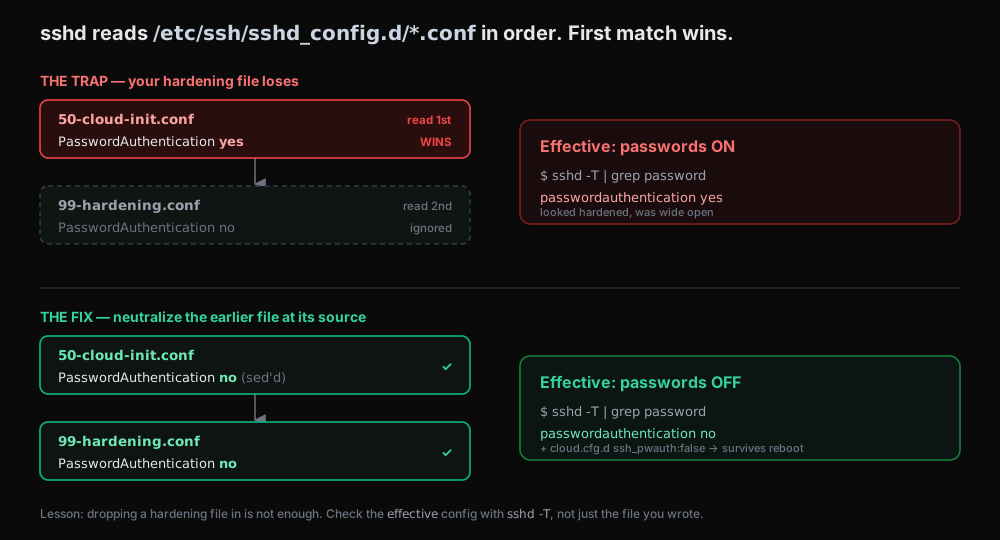 sshd reads the drop-in files in order and the first match wins, so 50-cloud-init.conf overrides 99-hardening.conf until you neutralize it
The fix is to neutralize it at the source, and stop cloud-init from regenerating it on the next reboot:
[ -f /etc/ssh/sshd_config.d/50-cloud-init.conf ] && \
  sed -i 's/^PasswordAuthentication yes/PasswordAuthentication no/' \
  /etc/ssh/sshd_config.d/50-cloud-init.conf
echo "ssh_pwauth: false" >/etc/cloud/cloud.cfg.d/99-disable-ssh-pwauth.cfg
sshd -t   # validate BEFORE reload; a bad config aborts here instead of locking you out
systemctl reload ssh 2>/dev/null || systemctl reload sshd
The lesson generalizes: never trust the file you just wrote, check the effective config. sshd -T prints the settings sshd will actually use, fully resolved across every drop-in. That is what the verify script leans on later.
Firewall, deny by default. Allow SSH and the Tailscale interface. Note that web ports are not opened here:
ufw --force reset >/dev/null
ufw default deny incoming
ufw default allow outgoing
ufw allow 22/tcp          # public SSH stays OPEN until Tailscale is verified
# Web ports 80/443 are only needed if this box serves HTTP(S) DIRECTLY on its
# public IP. If you front it with a Cloudflare Tunnel (outbound-only) you do
# not need any inbound web ports. Default: closed. OPEN_WEB=1 to open them.
if [ "${OPEN_WEB:-0}" = "1" ]; then
  ufw allow 80/tcp
  ufw allow 443/tcp
fi
ufw allow in on tailscale0
ufw --force enable
I run everything behind Cloudflare Tunnels, which are outbound-only, so my box needs zero inbound web ports. If you serve a site directly off the public IP instead, run the script with OPEN_WEB=1 and you get 80/443. Deny-by-default means everything else is dropped.
fail2ban, the backstop. While port 22 is still public, ban an IP after a few failed attempts:
cat >/etc/fail2ban/jail.local <<'EOF'
[sshd]
enabled  = true
maxretry = 4
findtime = 10m
bantime  = 1h
EOF
systemctl enable --now fail2ban
Once port 22 is off the public internet (next step), fail2ban is mostly redundant for SSH. It is cheap insurance for the window before that, and it still earns its keep on any HTTP services you add later.
Install Tailscale, but do not log in yet. Logging in is interactive, so the script just installs the binary:
command -v tailscale >/dev/null 2>&1 || curl -fsSL https://tailscale.com/install.sh | sh
After phase 1 you are roughly 90 percent hardened and you have three ways in: root by key, your user by key, and port 22 is open. You cannot be locked out.
Step 3: Tailscale up, then close the door
This is the part you do by hand, because tailscale up opens a browser login.
sudo tailscale up          # click the login link in the browser
tailscale ip -4            # note the 100.x.y.z address
Now the critical move. Add the myvps-ts alias from earlier pointing at the 100.x address, and open a brand new terminal to confirm it works:
ssh myvps-ts 'echo tailscale ssh works'
Only once that prints success do you close public SSH. Your current session stays open as a safety net the entire time:
sudo ufw delete allow 22/tcp     # removes the v4 and v6 rule
sudo ufw status verbose
After this, the only inbound rule left is the Tailscale interface. SSH is reachable over the tailnet and nowhere else.
Step 4: Verify from the inside
A companion read-only script re-checks everything and changes nothing, so you can run it any time to confirm the box has not drifted. It leans on sshd -T for the effective config, reads the UFW state, lists every listening socket, and checks fail2ban, unattended-upgrades, and Tailscale. The interesting part is its honest closing note:
$ sudo ./verify-hardening.sh
== SSH authentication (effective sshd config) ==
  PASS PasswordAuthentication = no (passwords rejected)
  PASS PubkeyAuthentication = yes (key login enabled)
  WARN PermitRootLogin = without-password (root key-only — your fallback)
== Firewall (UFW) ==
  PASS UFW is active
  PASS Default policy: deny incoming
  PASS Public port 22 is closed (SSH is Tailscale-only)
== Auto-patching & intrusion protection ==
  PASS fail2ban active
  PASS unattended-upgrades enabled
== Tailscale ==
  PASS tailscaled enabled at boot (reconnects after reboot)
  PASS Tailscale connected
  PASS 11   WARN 1   FAIL 0
The one warning is deliberate: I keep PermitRootLogin prohibit-password (root can still log in by key) as a recovery fallback. Once you trust the sudo user, tighten it to PermitRootLogin no.
But notice what this script can and cannot prove. It is checking the box from the inside. It can tell you UFW's rules, but it cannot actually tell you what the internet sees. For that you have to leave the building.
Step 5: The real test, from outside the box
This is the step most tutorials skip, and it is the only one that actually proves anything. From a machine on a different network (your laptop on its normal connection, or a phone hotspot, just not over Tailscale), scan the public IP:
nmap -Pn -p 22,80,443 --reason 203.0.113.42
PORT    STATE    SERVICE REASON
22/tcp  filtered ssh     no-response
80/tcp  filtered http    no-response
443/tcp filtered https   no-response
filtered with no-response means the firewall silently dropped the packet. Not "connection refused" (which would mean the port is reachable but nothing is listening), but no answer at all. From the public internet, the box is a black hole.
Prove it is the firewall, not an empty box
Here is the objection worth pre-empting: maybe those ports show filtered simply because nothing is listening on them. So let me make something listen, and check again. On the server, bind a throwaway web server to port 80 on all interfaces:
sudo python3 -m http.server 80 --bind 0.0.0.0
Now there is unambiguously a real server on port 80. Test it two ways from the laptop: once over the public IP, once over the Tailscale IP.
# over the public internet — should still be blocked
curl -m 6 http://203.0.113.42/      # times out
nmap -Pn -p 80 203.0.113.42         # still: filtered

# over Tailscale — should reach the very same server
curl -m 6 http://100.x.y.z/         # HTTP 200
The same listening process is invisible from the internet and reachable over Tailscale. That is the firewall doing its job, not an accident of nothing-listening.
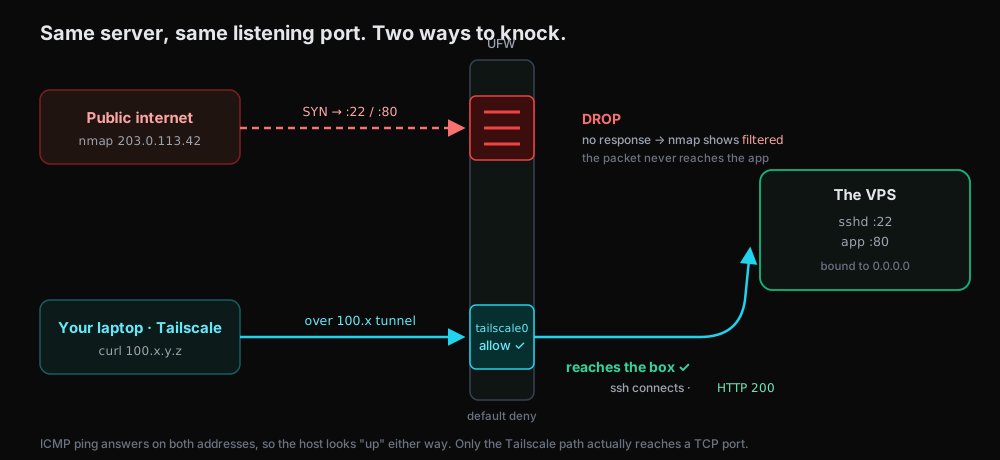 The same server on the same port: a packet to the public IP is dropped at the firewall, while a packet over the Tailscale interface passes through to the box
One more nuance worth knowing, because it trips people up. ICMP ping answers on both addresses:
ping -c2 203.0.113.42    # 0% packet loss — host is "up"
ping -c2 100.x.y.z       # 0% packet loss
So the public IP "responds to ping" while every TCP port is filtered. A successful ping tells you the host is alive, nothing more. Ping is not a security test. The port scan is.
When you are done, stop the throwaway server. (Small footgun I hit live: pkill -f http.server will match and kill your own SSH session, because your command line literally contains the string "http.server". Kill it by PID, or use pkill -f "[h]ttp.server" so the pattern does not match itself.)
What this protects, and what it does not
Honest scorecard, because "99 percent secure" is a vibe, not a measurement.
What is now genuinely handled: SSH brute force is gone, there is no public SSH surface to attack. Passwords are off, so credential stuffing is moot. The firewall denies everything inbound by default. Security patches apply automatically. There is no port answering the public internet at all.
What you still need to think about:
- Auto-patched kernels need a reboot to take effect.
unattended-upgradesinstalls them but does not reboot by default, so you can sit on a vulnerable kernel indefinitely. AddUnattended-Upgrade::Automatic-Reboot "true";with a 4am reboot time, or commit to rebooting yourself and watching/var/run/reboot-required. - Relying only on Tailscale for SSH is a real lockout risk. If tailscaled fails to come back after a reboot, or the node key expires (180 days by default), you have no way in. Two-minute insurance: confirm your provider's web console/VNC works now as an out-of-band door, and disable key expiry on the server node in the Tailscale admin.
- A couple of cheap sshd additions:
MaxAuthTries 3andLoginGraceTime 20. Trivial, and they tighten the Tailscale-facing SSH that remains.
The big one, for next time: the moment you install Docker (and anything like Dokploy, Coolify, or plain compose), Docker writes its own iptables rules that run before UFW. A container that publishes a port punches straight through your "deny by default" firewall, and a ufw deny does nothing to stop it. Your firewall starts lying to you. That is its own post, and it is the next one.
Where this goes next
Right now the box is sealed: nothing listens on the public internet, SSH is Tailscale-only, patches apply themselves. That is a great place to be, but a useless place to stay, because eventually you want to actually serve something.
The next post picks up exactly here: deploying apps securely behind a Cloudflare Tunnel, why Docker quietly bypasses the firewall we just built, and how to put it back in charge, so that adding an app does not undo an afternoon of hardening. The one-line teaser: after Docker arrives, you re-run the exact same external nmap from Step 5, and if you have not done it right, a port you never opened is suddenly open.
Until then, the rule that got us here is the one worth keeping: add and prove a new door before you close the old one, and never trust a firewall you have not tested from the outside.
The full scripts
Grab both and drop them in ~/scripts/ on the server. harden.sh is phase 1 (run as root); close port 22 by hand only after Tailscale is verified. verify-hardening.sh is read-only, re-run it any time.
#!/usr/bin/env bash
# VPS hardening - Phase 1 (safe, no lockout). Does NOT close public port 22
# and does NOT run 'tailscale up' (that is interactive / phase 2).
set -euo pipefail
NEWUSER="${NEWUSER:-rbhugra}"
log() { printf '\n\033[1;32m==> %s\033[0m\n' "$*"; }
[ "$(id -u)" -eq 0 ] || { echo "must run as root"; exit 1; }

log "Updating system + enabling unattended-upgrades"
export DEBIAN_FRONTEND=noninteractive
apt-get update -y
apt-get -y -o Dpkg::Options::="--force-confdef" -o Dpkg::Options::="--force-confold" upgrade
apt-get install -y unattended-upgrades fail2ban ufw curl
cat >/etc/apt/apt.conf.d/20auto-upgrades <<'EOF'
APT::Periodic::Update-Package-Lists "1";
APT::Periodic::Unattended-Upgrade "1";
EOF
systemctl enable --now unattended-upgrades >/dev/null 2>&1 || true

log "Creating sudo user: $NEWUSER (reusing existing SSH key)"
if ! id "$NEWUSER" >/dev/null 2>&1; then
  adduser --disabled-password --gecos "" "$NEWUSER"
fi
usermod -aG sudo "$NEWUSER"
install -d -m 700 -o "$NEWUSER" -g "$NEWUSER" "/home/$NEWUSER/.ssh"
cp /root/.ssh/authorized_keys "/home/$NEWUSER/.ssh/authorized_keys"
chown "$NEWUSER:$NEWUSER" "/home/$NEWUSER/.ssh/authorized_keys"
chmod 600 "/home/$NEWUSER/.ssh/authorized_keys"
echo "$NEWUSER ALL=(ALL) NOPASSWD:ALL" >/etc/sudoers.d/90-$NEWUSER
chmod 440 /etc/sudoers.d/90-$NEWUSER
visudo -cf /etc/sudoers.d/90-$NEWUSER

log "Hardening sshd"
cat >/etc/ssh/sshd_config.d/99-hardening.conf <<'EOF'
PasswordAuthentication no
KbdInteractiveAuthentication no
PubkeyAuthentication yes
PermitRootLogin prohibit-password
PermitEmptyPasswords no
EOF
[ -f /etc/ssh/sshd_config.d/50-cloud-init.conf ] && \
  sed -i 's/^PasswordAuthentication yes/PasswordAuthentication no/' /etc/ssh/sshd_config.d/50-cloud-init.conf
echo "ssh_pwauth: false" >/etc/cloud/cloud.cfg.d/99-disable-ssh-pwauth.cfg
sshd -t
systemctl reload ssh 2>/dev/null || systemctl reload sshd

log "Configuring UFW"
ufw --force reset >/dev/null
ufw default deny incoming
ufw default allow outgoing
ufw allow 22/tcp
if [ "${OPEN_WEB:-0}" = "1" ]; then
  ufw allow 80/tcp
  ufw allow 443/tcp
fi
ufw allow in on tailscale0
ufw --force enable

log "Enabling fail2ban"
cat >/etc/fail2ban/jail.local <<'EOF'
[sshd]
enabled  = true
maxretry = 4
findtime = 10m
bantime  = 1h
EOF
systemctl enable --now fail2ban >/dev/null 2>&1
systemctl restart fail2ban

log "Installing Tailscale"
if ! command -v tailscale >/dev/null 2>&1; then
  curl -fsSL https://tailscale.com/install.sh | sh
fi

log "PHASE 1 DONE. Next, interactively: tailscale up, verify SSH over 100.x in a"
echo "new terminal, THEN: sudo ufw delete allow 22/tcp"
And the verifier:
#!/usr/bin/env bash
# Read-only verification of VPS hardening. Changes nothing. Run: sudo ./verify-hardening.sh
GREEN=$'\033[1;32m'; RED=$'\033[1;31m'; YEL=$'\033[1;33m'; OFF=$'\033[0m'
pass=0; fail=0; warn=0
ok()  { printf '  %sPASS%s %s\n' "$GREEN" "$OFF" "$*"; pass=$((pass+1)); }
bad() { printf '  %sFAIL%s %s\n' "$RED"   "$OFF" "$*"; fail=$((fail+1)); }
note(){ printf '  %sWARN%s %s\n' "$YEL"   "$OFF" "$*"; warn=$((warn+1)); }
hdr() { printf '\n%s== %s ==%s\n' "$YEL" "$*" "$OFF"; }
[ "$(id -u)" -eq 0 ] || { echo "Run with sudo."; exit 1; }

hdr "SSH authentication (effective sshd config)"
cfg=$(sshd -T 2>/dev/null)
get() { grep -i "^$1 " <<<"$cfg" | awk '{print $2}'; }
[ "$(get passwordauthentication)" = "no" ] && ok "PasswordAuthentication = no" || bad "passwords still accepted!"
[ "$(get pubkeyauthentication)" = "yes" ] && ok "PubkeyAuthentication = yes" || bad "keys disabled, lockout risk!"
case "$(get permitrootlogin)" in
  no) ok "PermitRootLogin = no";;
  prohibit-password|without-password) note "PermitRootLogin = $(get permitrootlogin) (root key-only fallback)";;
  *) bad "PermitRootLogin = $(get permitrootlogin) — root password login possible!";;
esac

hdr "Firewall (UFW)"
if ufw status verbose 2>/dev/null | grep -q "Status: active"; then
  ok "UFW is active"
  ufw status verbose | grep -qi "deny (incoming)" && ok "Default policy: deny incoming" || bad "incoming not denied"
  if ufw status | grep -E '(^|\s)22/tcp\s' | grep -qi anywhere; then
    bad "Port 22 open to the public internet (should be Tailscale-only)"
  else
    ok "Public port 22 is closed (SSH is Tailscale-only)"
  fi
else
  bad "UFW is not active"
fi

hdr "Auto-patching & intrusion protection"
systemctl is-active --quiet fail2ban && ok "fail2ban active" || bad "fail2ban not running"
systemctl is-enabled --quiet unattended-upgrades 2>/dev/null && ok "unattended-upgrades enabled" || note "unattended-upgrades not enabled"

hdr "Tailscale"
systemctl is-enabled --quiet tailscaled && ok "tailscaled enabled at boot" || bad "tailscaled NOT enabled at boot"
tailscale status >/dev/null 2>&1 && ok "Tailscale connected" || bad "Tailscale not connected"

printf '\n  %sPASS %d%s  %sWARN %d%s  %sFAIL %d%s\n' "$GREEN" "$pass" "$OFF" "$YEL" "$warn" "$OFF" "$RED" "$fail" "$OFF"
echo
echo "NOTE: This checks the box from the inside. The definitive test that ports"
echo "are closed must run from another machine (not on Tailscale):"
echo "    nmap -Pn -p 22,80,443 <your-public-ip>   # 22 should show 'filtered'"
exit $fail